Google Chrome Updates

It’s easier to manage cookies. You can choose if and how cookies are used by websites you visit, with options to block third-party cookies in regular or Incognito mode, and to block all cookies on some or all websites.
In Site Settings, we’ve reorganized the controls into two distinct sections to make it easier to find the most sensitive website permissions: access to your location, camera or microphone, and notifications. A new section also highlights the most recent permissions activity.
At the top of Chrome settings, you’ll see “You and Google” (previously “People”), where you can find sync controls. These controls put you in charge of what data is shared with Google to store in your Google Account and made available across all your devices.
Because many people regularly delete their browsing history, we’ve moved that control, “Clear browsing data”, to the top of the Privacy & Security section.
The new tool will tell you if the passwords you’ve asked Chrome to remember have been compromised, and if so, how to fix them.
It will flag if Safe Browsing, Google’s technology to warn before you visit a dangerous site or download a harmful app or extension, is turned off.
The safety check tool also has a new additional way to quickly see if your version of Chrome is up to date, i.e. if it’s updated with the latest security protections.
If malicious extensions are installed, it will tell you how and where to remove them.
In Incognito mode, where people come for a more private browsing experience, Chrome doesn’t save your browsing history, information entered in forms or browser cookies. While we continue to work on our long-term effort to make the web more private and secure with Privacy Sandbox, we want to strengthen the Incognito protections in the meantime. In addition to deleting cookies every time you close the browser window in Incognito, we will also start blocking third-party cookies by default within each Incognito session and include a prominent control on the New Tab Page. You can allow third-party cookies for specific sites by clicking the “eye” icon in the address bar. This feature will gradually roll out, starting on desktop operating systems and on Android.
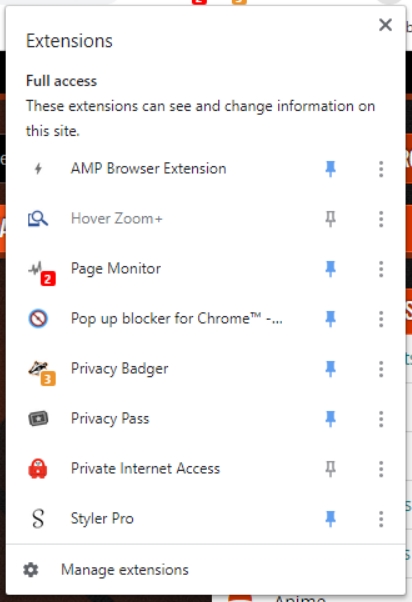
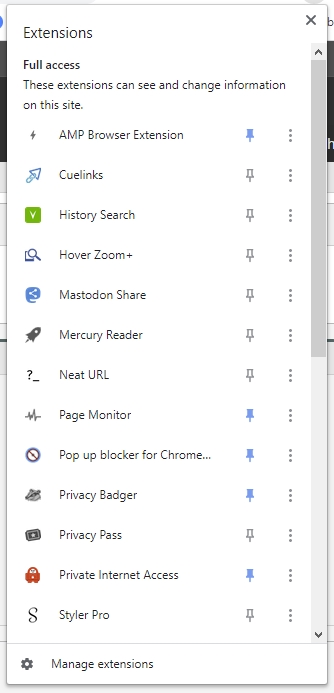
Starting today you’ll start to see a new puzzle icon for your extensions on your toolbar. It’s a neat way to tidy up your toolbar, and gives you more control over what data extensions can access on sites you visit. With this addition, you’ll still be able to pin your favorite extensions to the toolbar.
 
QsI0peT.jpg


this has landed in chrome beta.
 
Back