Google Drive

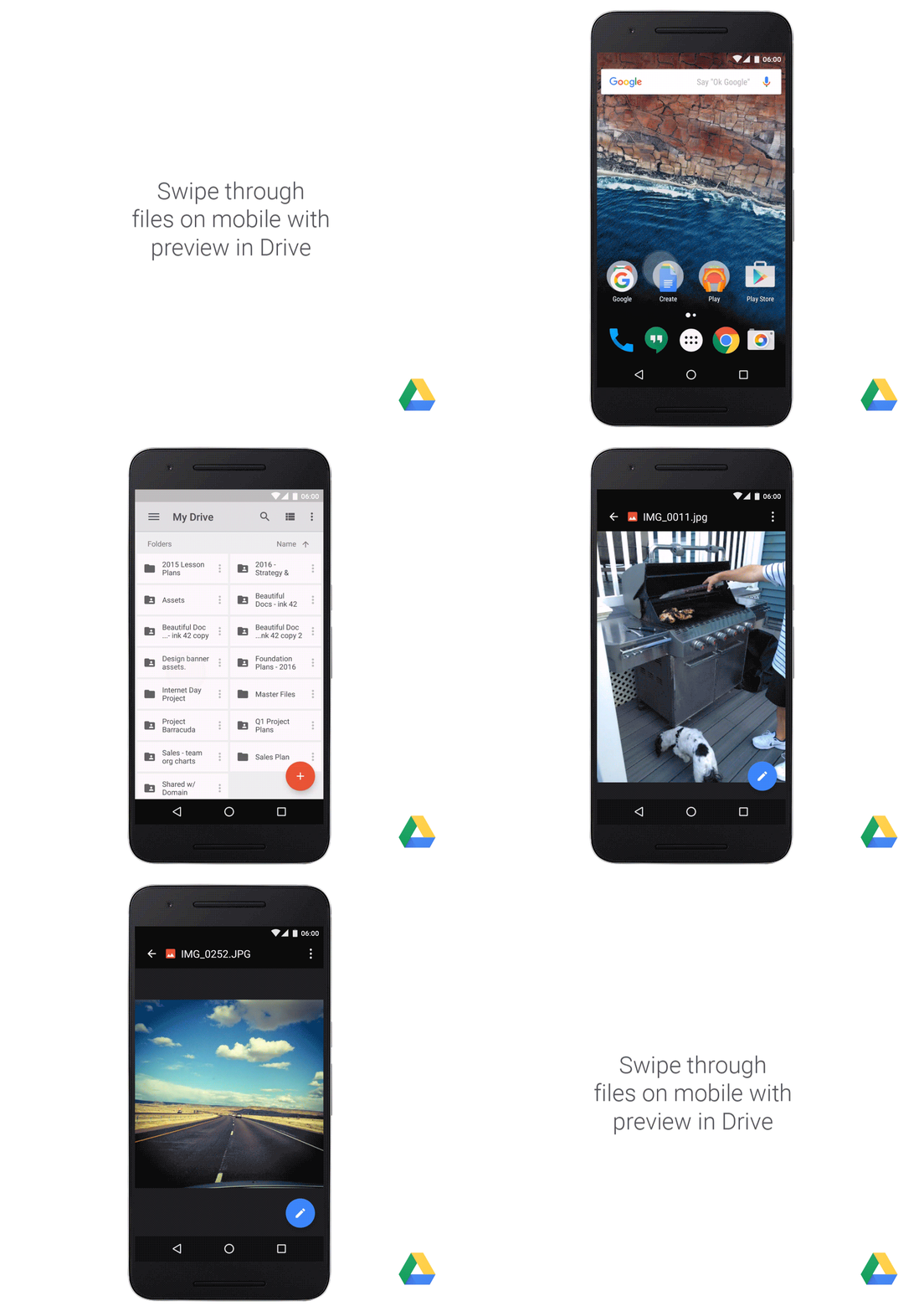
Google Apps update alerts: Reverse sort and instantly edit with your favorite apps in the new Google Drive for Android app

Reverse Sort: We’ve heard feedback that you want more flexibility in how files are sorted. We’re adding the popular request to allow reverse sorting. Simply tap the sort column at the top of Drive to swap the sort order.

Instantly edit with your favorite apps: If you have an editor app installed on your device, you can now jump into the editor directly from the file preview in Google Drive. This is great if you want to make changes on the fly and have those changes saved back to Google Drive. Some common editor apps include Google Photos, Google Docs, and more.

WasixHe.webp
 
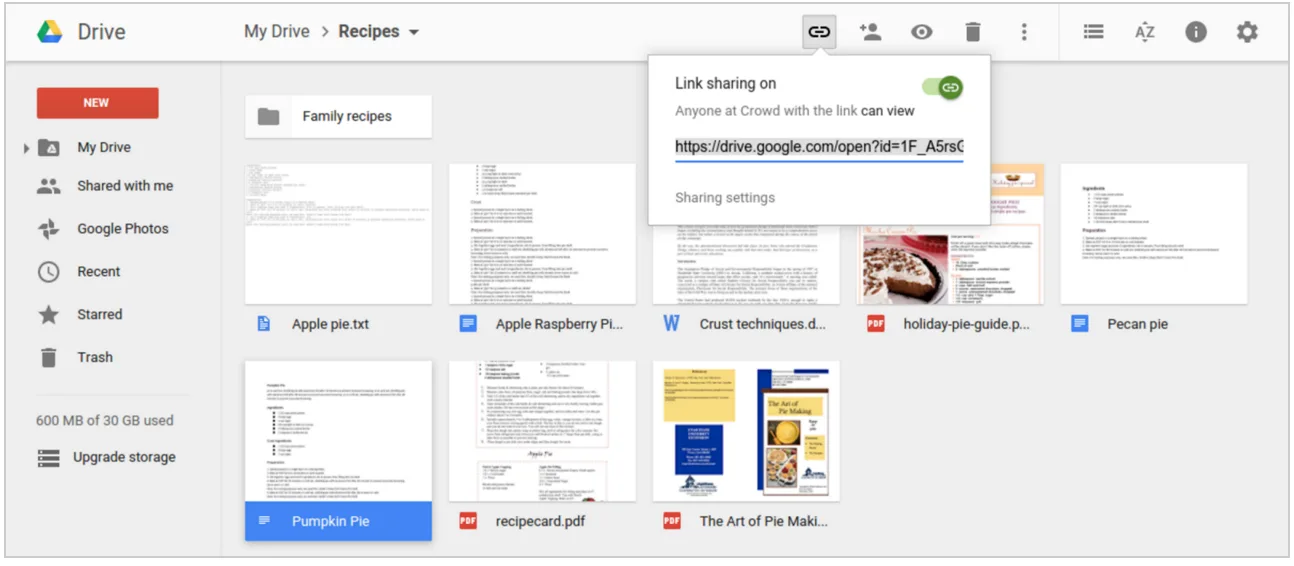
Google Apps update alerts: Activate link sharing quickly via the “Get sharable link” icon in Drive web

Google Drive allows users to easily share files with collaborators through access control permissions and sharable links. With today’s launch, we are making it even easier to turn on file sharing in Drive on the web. Just select a file and click on the “Get sharable link” icon on the top right-hand side menu. The sharing link will be copied to the clipboard for easy distribution and will provide view access to anyone in your domain who receives the link.

CKrNFwa.webp
 
Google Drive Blog: Because your computer only has so much space

Select what you sync
Drive can store terabytes (upon terabytes) but there’s a good chance your computer’s hard drive will run out of space if you sync everything. Fortunately, you can now select which folders or subfolders you want to sync — and deselect the ones you don’t.

Take care of shared files and folders
After you sync your files, Drive makes it easy to move and delete items directly from your computer. But doing that with shared files can cause others to lose access. Now, Drive warns you when this might happen.
 
Google Apps update alerts: Choose the Google Docs, Sheets, and Slides files you want to access offline

With this launch, we’ll allow end users to choose the specific files they want to make available for offline access when they’re working in a Chrome browser on their desktop computer. This will make it easy for individuals to work anywhere, anytime, even when they don’t have an internet connection. To make a file available for offline access, a user simply needs to visit the Docs, Sheets, or Slides home screen and toggle the Available offline switch in a file’s overflow menu to ON.
 
Back