
Disclaimer : I'm not responsible if you brick your router in-between the process.
1. Open 192.168.1.1 in any browser
default username password both is admin
2. Go to Maintenance->backup and restore->export config file on your desktop
it will be saved as config.cfg
3. Download & install python on your pc
also download this file(python script) on your desktop
Nokia/Alcatel-Lucent router backup configuration tool
4. Open cmd
type
python C:\Users\XXXXX\Desktop\Nokia-router-cfg-tool.py (replace xxxxx with your windows user)
(4b) now lets decrypt your cfg file first
type
python nokia-router-cfg-tool.py -d OYdLWUVDdKQTPaCIeTqniA==
(4c) now unpack you cfg file to xml
type
python nokia-router-cfg-tool.py -u config.cfg
5. A new file is created on your desktop .xml format
right click & select edit.
(5a) press control+f and type TelnetSshAccount in searchbox then hit enter
now change the values same as below
<TelnetSshAccount. n="TelnetSshAccount" t="staticObject">
<Enable rw="RW" t="boolean" v="True"></Enable>
<UserName ml="64" rw="RW" t="string" v="admin"></UserName>
<Password ml="64" rw="RW" t="string" v="OYdLWUVDdKQTPaCIeTqniA==" ealgo="ab"></Password>
press control s to save the file & close it
6. Go back to cmd & check for repack command to encrypt the edited xml file back to cfg
it will look like this something like this :
type
python nokia-router-cfg-tool.py -ple config-XXXXXXX-XXXXXX.xml 0x4924ea42
(6a) a new cfg file will be created on your desktop.
7. Now go back to router login page 192.168.1.1
(7a) go to Maintenance->backup and restore & click "select" then browse newly created cfg file from your desktop then click import
wait for the router to reboot itself.
8. Now login again 192.168.1.1
Go to Security->Access control and allow both telent & ssh(Wan & Lan)
9. Download MobaXterm_Portable_v21.5 link below
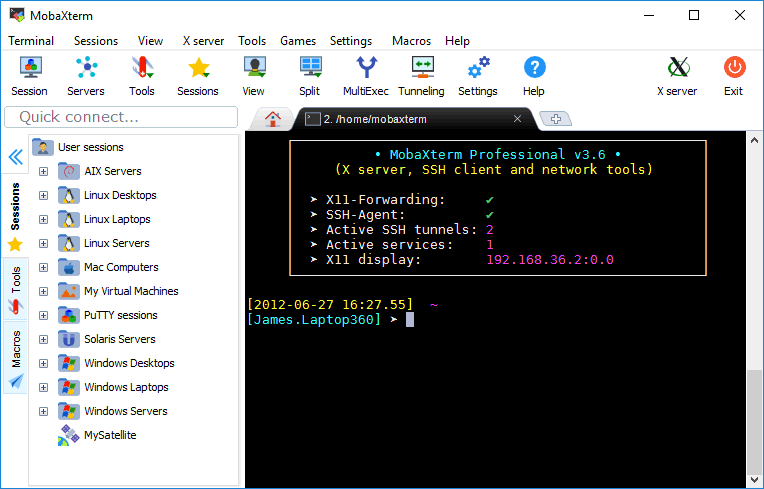
 mobaxterm.mobatek.net
10. Open Mobaxterm & click on Start local terminal
mobaxterm.mobatek.net
10. Open Mobaxterm & click on Start local terminal
type
telnet 192.168.1.1
user: admin
password: admin
11. After that lets first copy this in your clipboard: '; /bin/sh; #
(11a) go back to mobaxterm
type
enable
type
shell
it will ask for password2, press shift+insert button on your keyboard and hit enter
BOOM now you've root access
(11b) to take the current backup of airtel settings
type
cfgcli dump
type
ritool dump
& save the file by going terminal->save terminal text.
(11c) now to unlock settings
type
ritool set OperatorID ALCL
12. Go back your router login on your browser 192.168.1.1 and BOOOOOOM everything is unlocked, you'll see changes right away
Important : If you plan to stick with everything unlocked using airtel fiber then let it as it is.
Important: If you plan to use this router with any other fiber connection just do a factory reset.
Doing a factory reset will erase, reset & unlock everything. The default router login address will change to 192.168.1.254 with username AdminGPON and password as ALC#FGU
I've personally myself tested this whole process & successfully unlocked 3 routers.
I wish you all good health.
1. Open 192.168.1.1 in any browser
default username password both is admin
2. Go to Maintenance->backup and restore->export config file on your desktop
it will be saved as config.cfg
3. Download & install python on your pc
also download this file(python script) on your desktop
Nokia/Alcatel-Lucent router backup configuration tool
4. Open cmd
type
python C:\Users\XXXXX\Desktop\Nokia-router-cfg-tool.py (replace xxxxx with your windows user)
(4b) now lets decrypt your cfg file first
type
python nokia-router-cfg-tool.py -d OYdLWUVDdKQTPaCIeTqniA==
(4c) now unpack you cfg file to xml
type
python nokia-router-cfg-tool.py -u config.cfg
5. A new file is created on your desktop .xml format
right click & select edit.
(5a) press control+f and type TelnetSshAccount in searchbox then hit enter
now change the values same as below
<TelnetSshAccount. n="TelnetSshAccount" t="staticObject">
<Enable rw="RW" t="boolean" v="True"></Enable>
<UserName ml="64" rw="RW" t="string" v="admin"></UserName>
<Password ml="64" rw="RW" t="string" v="OYdLWUVDdKQTPaCIeTqniA==" ealgo="ab"></Password>
press control s to save the file & close it
6. Go back to cmd & check for repack command to encrypt the edited xml file back to cfg
it will look like this something like this :
type
python nokia-router-cfg-tool.py -ple config-XXXXXXX-XXXXXX.xml 0x4924ea42
(6a) a new cfg file will be created on your desktop.
7. Now go back to router login page 192.168.1.1
(7a) go to Maintenance->backup and restore & click "select" then browse newly created cfg file from your desktop then click import
wait for the router to reboot itself.
8. Now login again 192.168.1.1
Go to Security->Access control and allow both telent & ssh(Wan & Lan)
9. Download MobaXterm_Portable_v21.5 link below
MobaXterm free Xserver and tabbed SSH client for Windows
The ultimate toolbox for remote computing - includes X server, enhanced SSH client and much more!
type
telnet 192.168.1.1
user: admin
password: admin
11. After that lets first copy this in your clipboard: '; /bin/sh; #
(11a) go back to mobaxterm
type
enable
type
shell
it will ask for password2, press shift+insert button on your keyboard and hit enter
BOOM now you've root access
(11b) to take the current backup of airtel settings
type
cfgcli dump
type
ritool dump
& save the file by going terminal->save terminal text.
(11c) now to unlock settings
type
ritool set OperatorID ALCL
12. Go back your router login on your browser 192.168.1.1 and BOOOOOOM everything is unlocked, you'll see changes right away
Important : If you plan to stick with everything unlocked using airtel fiber then let it as it is.
Important: If you plan to use this router with any other fiber connection just do a factory reset.
Doing a factory reset will erase, reset & unlock everything. The default router login address will change to 192.168.1.254 with username AdminGPON and password as ALC#FGU
I've personally myself tested this whole process & successfully unlocked 3 routers.
I wish you all good health.
Last edited by a moderator:


