
Many people want to get access to uncensored internet. Unfortunately, the way most VPNs work makes it a all or nothing kind of thing. What if you want VPN just for Twitter? Or TikTok? I will show you how you can do it.
Windows guide:
First, you need the wireproxy.exe from Releases · windtf/wireproxy
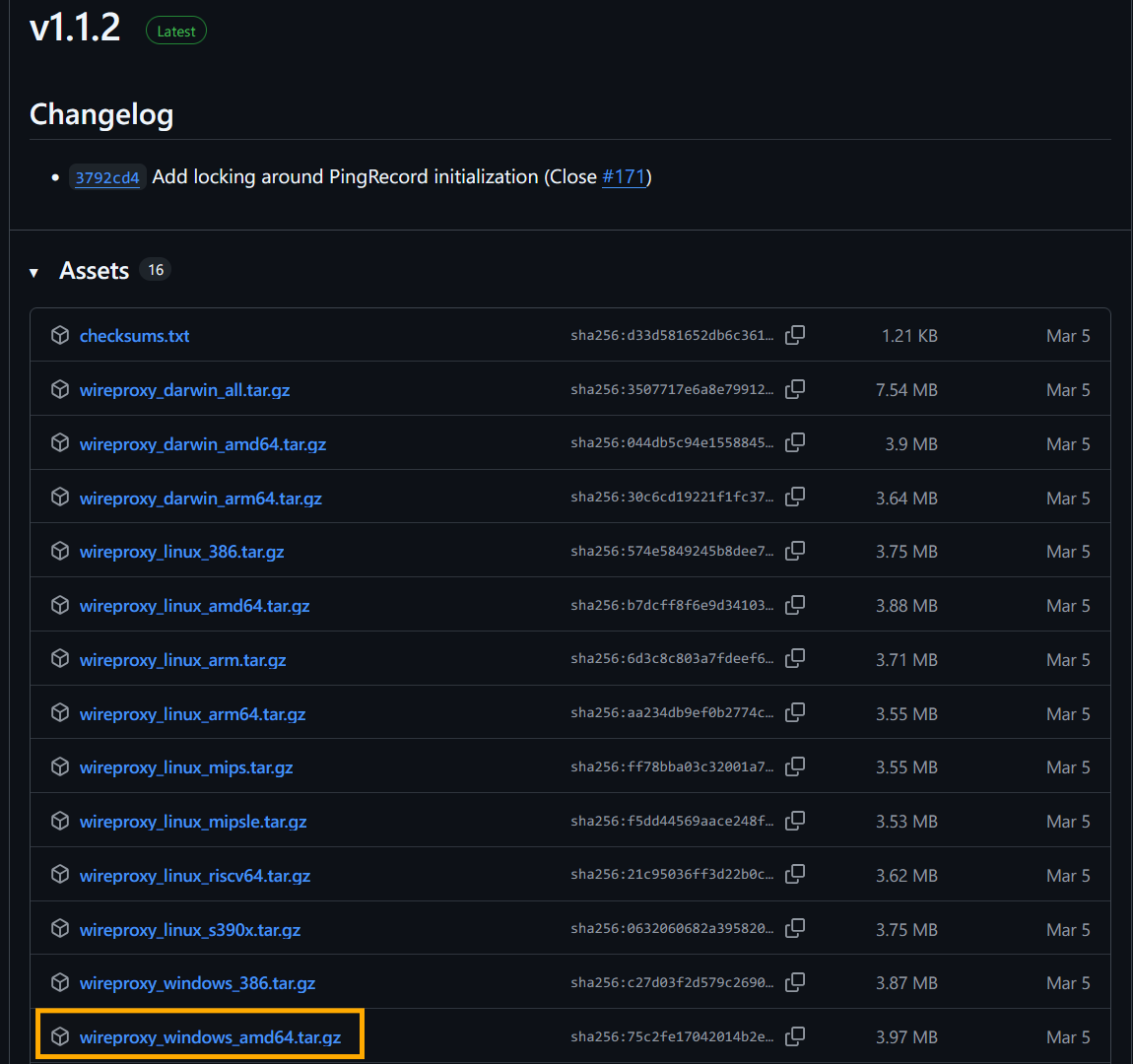
Since I have 64 bit architecture, you can open cmd in Windows by typing cmd in start menu, in the cmd type "echo %PROCESSOR_ARCHITECTURE%". It says 'amd64' so we will go with 'wireproxy_windows_amd64.tar.gz'. Now you need to unzip using 7zip 7-Zip
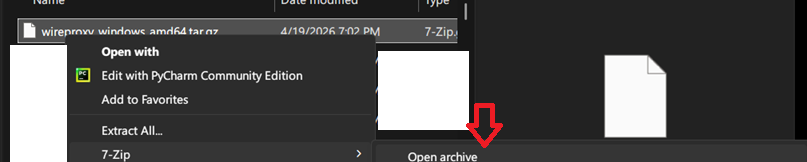
Right click>Show more options (only in Windows 11)> 7 zip> open archive.
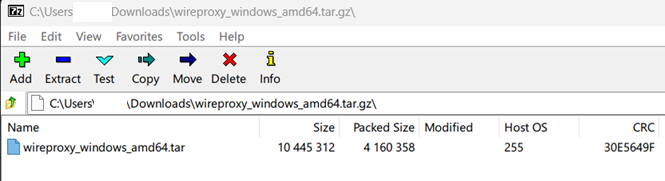
It'll show a tar archive, open it. Now, you will see wireproxy.exe. Keep it open.
Now, create a folder called 'wireproxy' in C: (or wherever you don't need admin access).
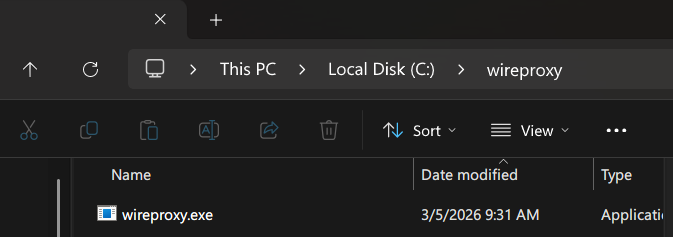
Drag and drop wireproxy.exe to the folder you just created.
Next you will need a protonvpn account, you can register at proton.me. Once registered, login and go to Proton VPN
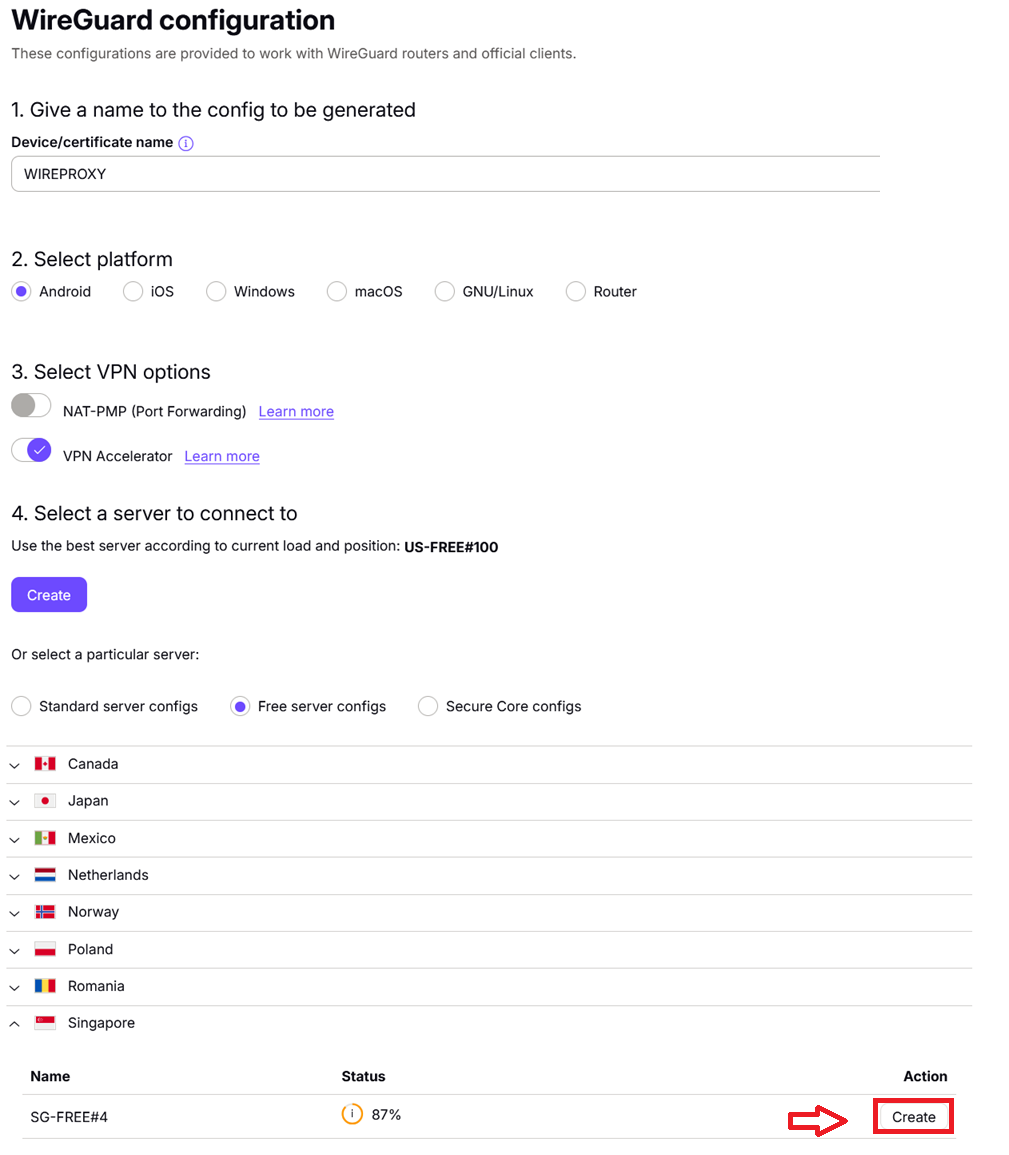
Here, you need to create a wireguard config. Device name can be whatever you want. Platform, i found that android works just fine with wireproxy, the differences are minor. And server, pick whichever country you want to proxy to. I chose Singapore since it is the closest to India. Click the create button.
It will show the config, download it. Now move that config file to C:/wireproxy, where you created it previously.
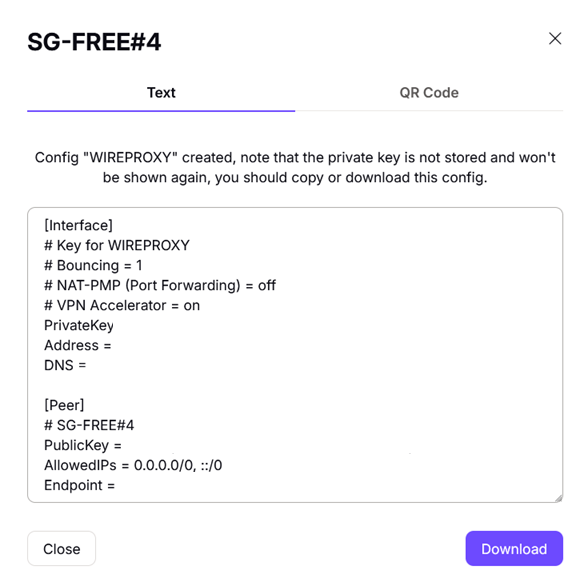
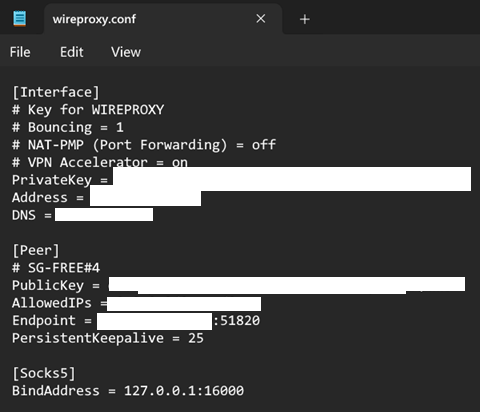
I renamed the conf file to wireproxy.conf to make it easier to type commands. Since, we need to make it into a socks5 proxy (to use with containers in firefox), we need to add SOCKS5 to the end of the config file:
127.0.0.1 to make it only accessible within the PC, nowhere else. Port you can pick one from 1024-65535 (since lower ports are likely to be used).
You also need to remove the gap between Endpoint line and PersistentKeepalive.
The config looks like this:
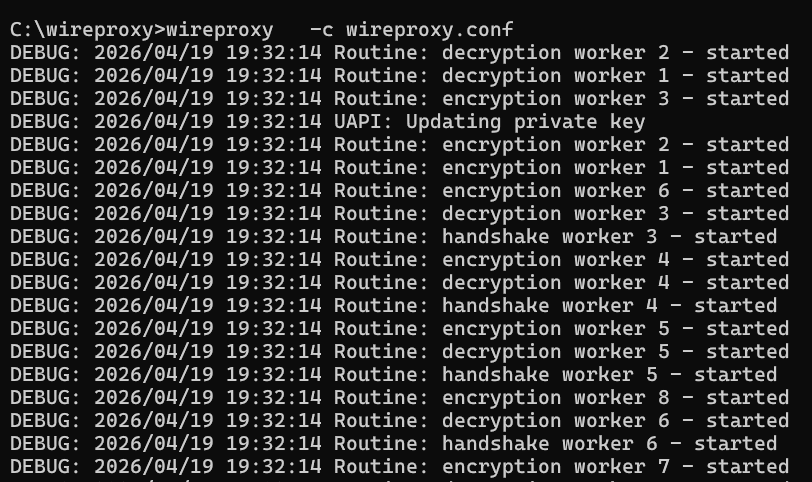
Now, we will run wireproxy and make it use this config. Open cmd like before. Now, change directory to wireproxy, the new one we created before. "cd C:\wireproxy". Type "wireproxy -c wireproxy.conf", this will run the wireproxy, it will run in debug mode so it'll show a lot of text, it's fine.
To test the proxy, you can open another cmd (DON'T CLOSE THE CURRENTLY OPEN ONE SINCE IT'S RUNNING WIREPROXY). Type "curl --proxy socks5h://127.0.0.1:16000 http://ip-api.com/json"

It'll show the country as the one you selected earlier, in my case, Singapore.
Now we know the proxy works, let's make it run in the background. You need to close the existing cmd running wireproxy otherwise ports will conflict (both share same config) and the background one won't run.
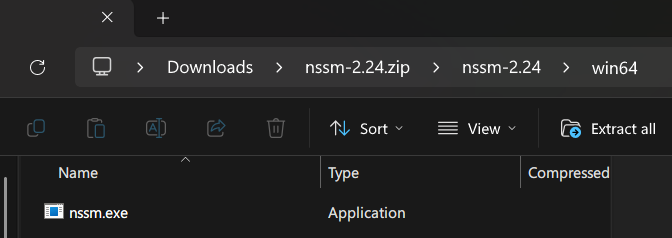
You need to download NSSM, NSSM - the Non-Sucking Service Manager open the zip, for me "nssm-2.24.zip". Go to "nssm-2.24" within the zip and win64 with that one (since we are on AMD64). Copy the nssm.exe and paste it in C:\wireproxy we created before.
Open cmd again, type
This will need admin rights. So click yes.
Path: C:\wireproxy\wireproxy.exe
Startup directory: C:\wireproxy
Arguments: -s -c wireproxy.conf
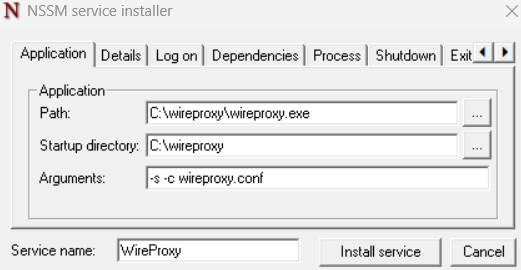
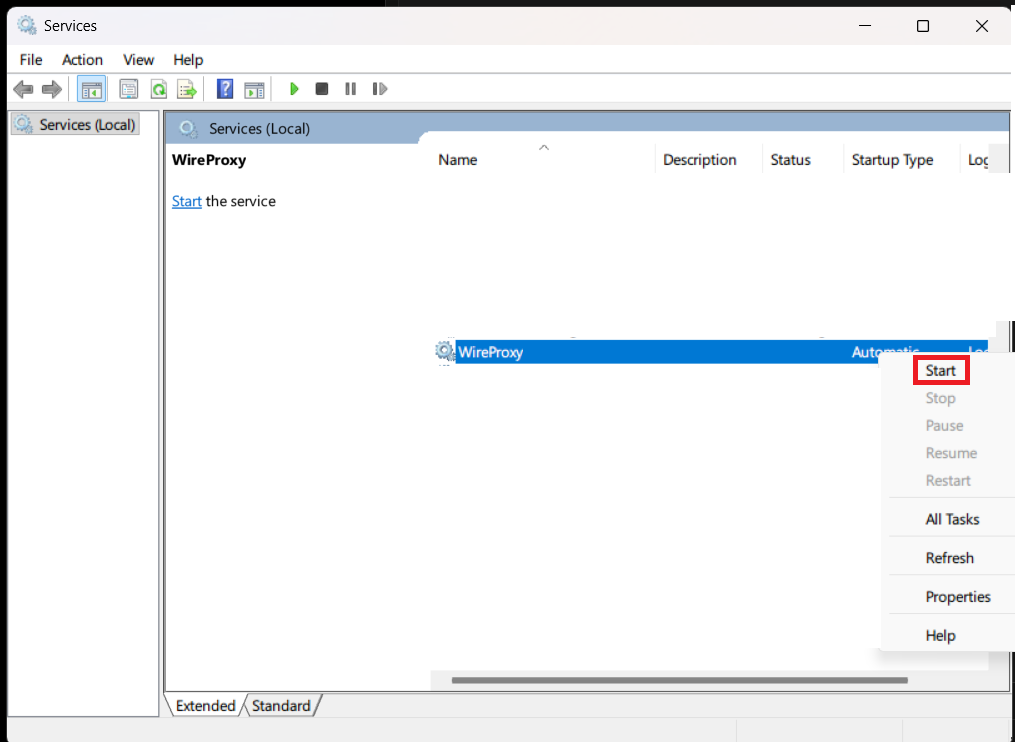
Click "Install Service" and you are done. It will start on boot from now on, you can reboot your PC and it should start automatically. To start it right now press start menu type "Services" and press enter, it'll open Services. Scroll down to WireProxy service we created, right click and press start.
Let's move on to containers part, install Firefox if you dont have it already Download Firefox for Windows
You need to install two extensions:
1. Firefox Multi-Account Containers – Get this Extension for Firefox (en-US)
2. Container proxy – Get this Extension for Firefox (en-US)
Now, type in "moz-extension://a44902f1-cf6d-480c-ba9f-dcc988727d5a/options/options.html#!/proxies" in the URL or go to Container Proxy settings in the extensions.
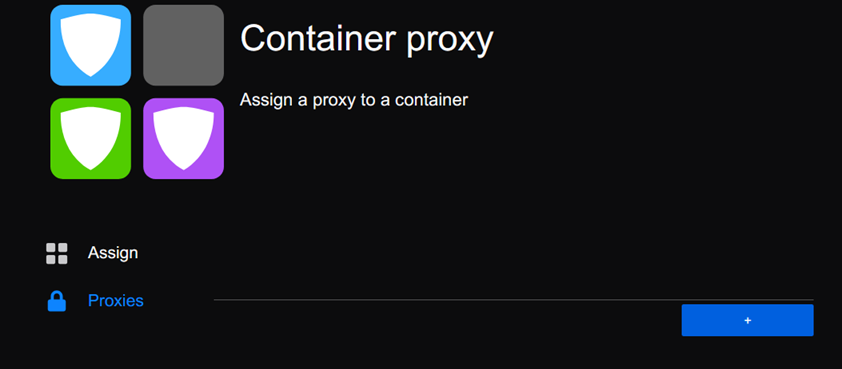
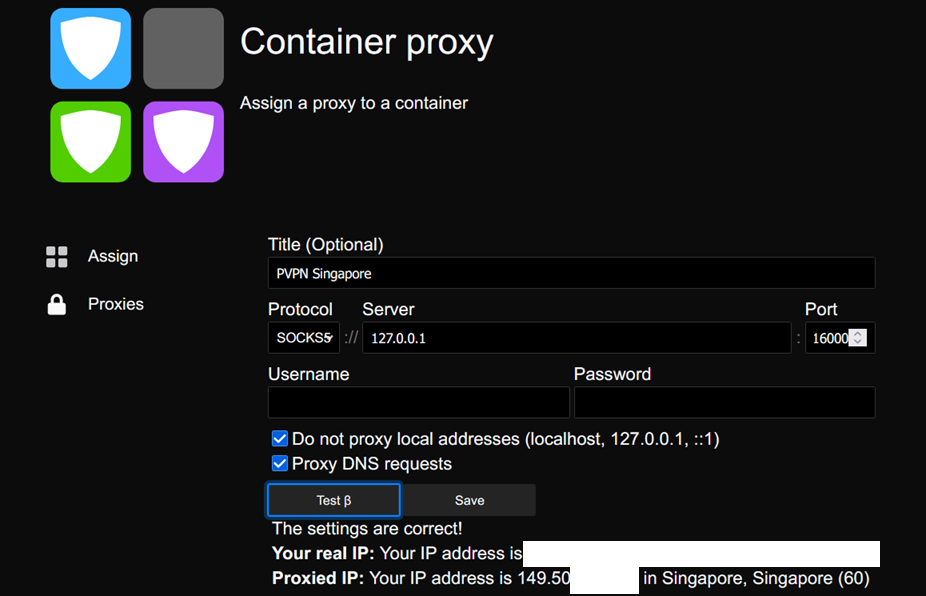
Click on the "+" button. Type in title you want I set it to "PVPN Singapore", set Protocol to "SOCKS5", Server to "127.0.0.1" and Port to "16000" (the one from config). Leave username and password empty. Click on "Test". It will say "Proxied IP: Your IP address is ..... Singapore" (or whatever country you chose). Click on save.
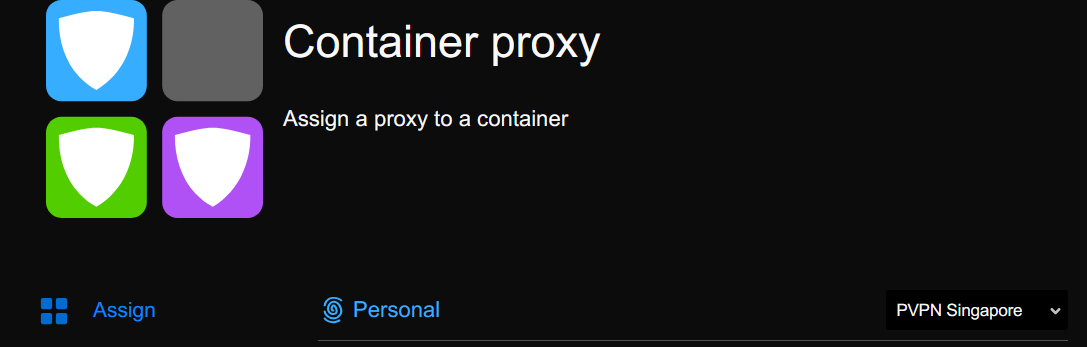
Now to assign it to a specific container, Click "Assign" on the left, and change a container to use the proxy "Personal" is a default container, so I chose that to use proxy with. You can create your own custom name containers. See:
 support.mozilla.org
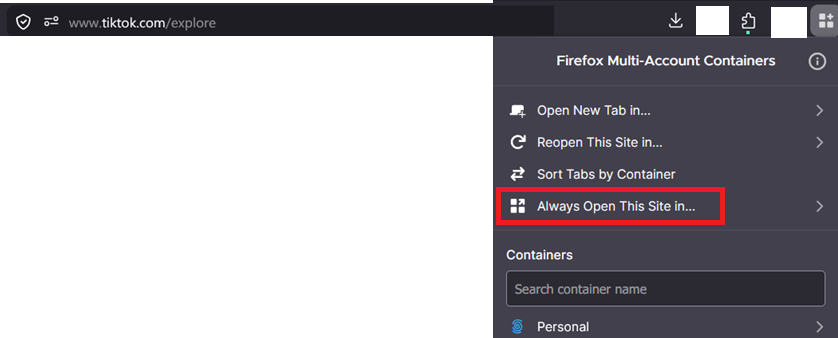
Now, let's say you want get tiktok.com through the proxy, simply go to tiktok.com on Firefox. Click on Containers extension icon click on "Always Open This Site In" and set it to "Personal" the container we assigned a proxy to earlier. Now whenever you open tiktok on firefox, it will go to Singapore automatically, while rest of your traffic is unaffected. Also, all the data stored eg cookies logins site data are seperate and cannot be used to track you.
Enjoy!
Windows guide:
First, you need the wireproxy.exe from Releases · windtf/wireproxy
Since I have 64 bit architecture, you can open cmd in Windows by typing cmd in start menu, in the cmd type "echo %PROCESSOR_ARCHITECTURE%". It says 'amd64' so we will go with 'wireproxy_windows_amd64.tar.gz'. Now you need to unzip using 7zip 7-Zip
Right click>Show more options (only in Windows 11)> 7 zip> open archive.
It'll show a tar archive, open it. Now, you will see wireproxy.exe. Keep it open.
Now, create a folder called 'wireproxy' in C: (or wherever you don't need admin access).
Drag and drop wireproxy.exe to the folder you just created.
Next you will need a protonvpn account, you can register at proton.me. Once registered, login and go to Proton VPN
Here, you need to create a wireguard config. Device name can be whatever you want. Platform, i found that android works just fine with wireproxy, the differences are minor. And server, pick whichever country you want to proxy to. I chose Singapore since it is the closest to India. Click the create button.
It will show the config, download it. Now move that config file to C:/wireproxy, where you created it previously.
I renamed the conf file to wireproxy.conf to make it easier to type commands. Since, we need to make it into a socks5 proxy (to use with containers in firefox), we need to add SOCKS5 to the end of the config file:
Code:
[Socks5]
BindAddress = 127.0.0.1:16000
127.0.0.1 to make it only accessible within the PC, nowhere else. Port you can pick one from 1024-65535 (since lower ports are likely to be used).
You also need to remove the gap between Endpoint line and PersistentKeepalive.
The config looks like this:
Now, we will run wireproxy and make it use this config. Open cmd like before. Now, change directory to wireproxy, the new one we created before. "cd C:\wireproxy". Type "wireproxy -c wireproxy.conf", this will run the wireproxy, it will run in debug mode so it'll show a lot of text, it's fine.
To test the proxy, you can open another cmd (DON'T CLOSE THE CURRENTLY OPEN ONE SINCE IT'S RUNNING WIREPROXY). Type "curl --proxy socks5h://127.0.0.1:16000 http://ip-api.com/json"
It'll show the country as the one you selected earlier, in my case, Singapore.
Now we know the proxy works, let's make it run in the background. You need to close the existing cmd running wireproxy otherwise ports will conflict (both share same config) and the background one won't run.
You need to download NSSM, NSSM - the Non-Sucking Service Manager open the zip, for me "nssm-2.24.zip". Go to "nssm-2.24" within the zip and win64 with that one (since we are on AMD64). Copy the nssm.exe and paste it in C:\wireproxy we created before.
Open cmd again, type
Code:
C:\wireproxy\nssm.exe install WireProxyThis will need admin rights. So click yes.
Path: C:\wireproxy\wireproxy.exe
Startup directory: C:\wireproxy
Arguments: -s -c wireproxy.conf
Click "Install Service" and you are done. It will start on boot from now on, you can reboot your PC and it should start automatically. To start it right now press start menu type "Services" and press enter, it'll open Services. Scroll down to WireProxy service we created, right click and press start.
Let's move on to containers part, install Firefox if you dont have it already Download Firefox for Windows
You need to install two extensions:
1. Firefox Multi-Account Containers – Get this Extension for
Firefox (en-US)2. Container proxy – Get this Extension for
Firefox (en-US)Now, type in "moz-extension://a44902f1-cf6d-480c-ba9f-dcc988727d5a/options/options.html#!/proxies" in the URL or go to Container Proxy settings in the extensions.
Click on the "+" button. Type in title you want I set it to "PVPN Singapore", set Protocol to "SOCKS5", Server to "127.0.0.1" and Port to "16000" (the one from config). Leave username and password empty. Click on "Test". It will say "Proxied IP: Your IP address is ..... Singapore" (or whatever country you chose). Click on save.
Now to assign it to a specific container, Click "Assign" on the left, and change a container to use the proxy "Personal" is a default container, so I chose that to use proxy with. You can create your own custom name containers. See:
How to use Firefox containers | Firefox Help
This article explains how to use Firefox containers with the Multi-Account Containers extension, to organize your online activities.
Now, let's say you want get tiktok.com through the proxy, simply go to tiktok.com on Firefox. Click on Containers extension icon click on "Always Open This Site In" and set it to "Personal" the container we assigned a proxy to earlier. Now whenever you open tiktok on firefox, it will go to Singapore automatically, while rest of your traffic is unaffected. Also, all the data stored eg cookies logins site data are seperate and cannot be used to track you.
Enjoy!
